Imposer Documentation
This page documents every Imposer panel using the current implementation, so settings descriptions match behavior in the app. Last updated 2026-07-11.
Imposer Panels
1. Choose file(s)
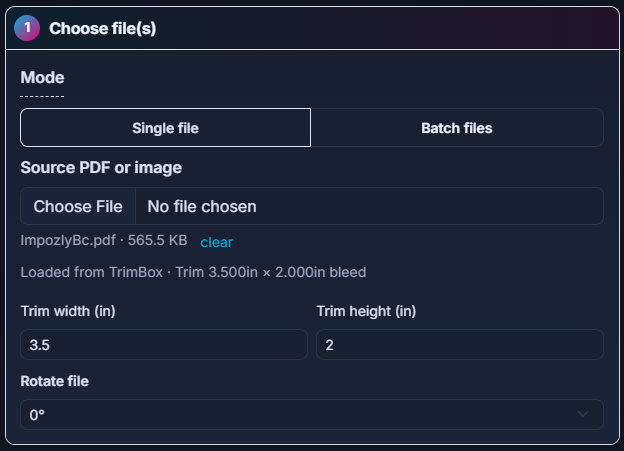
This panel controls source loading, file mode, and source metadata overrides.
- Mode: Single file or Batch files. Batch requires a Plus or Studio plan.
- Accepted uploads: PDF and image files in single mode. Batch mode also supports ZIP uploads.
- File count limits: Up to 40 files at a time in batch mode. For larger batches, upload a ZIP file containing up to 200 supported files.
- Upload feedback: progress bar, uploaded filename, and clear action.
- Detected source info: page count, TrimBox or CropBox dimensions, and bleed detection.
- Trim override: custom trim width and height can replace detected trim dimensions.
- Source rotation: rotate input pages by 0, 90, 180, or 270 degrees before imposition.
 1
2
3
4
5
6
7
1
2
3
4
5
6
72. Sheet size
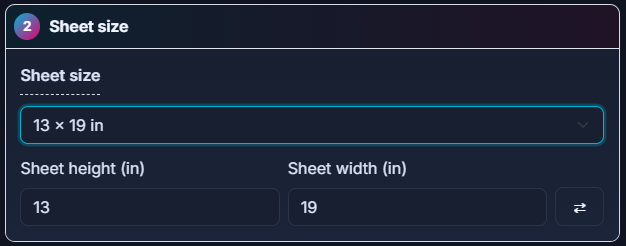
Defines the final press sheet dimensions used by the layout engine.
- Preset selector: choose from standard paper presets or custom size.
- Custom dimensions: sheet height and width in the active unit system.
- Swap control: quickly flip width and height for portrait or landscape orientation.
- Auto-grid impact: changing sheet size can trigger recalculation when auto layout is enabled.
 1
2
3
4
1
2
3
43. Layout
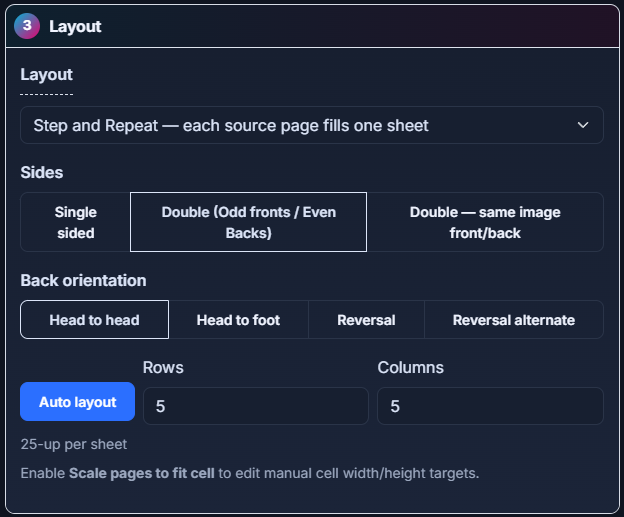
Controls page ordering model, front/back behavior, and grid strategy.
- Layout mode: Sequential, StepAndRepeat, CutInStack, Booklet, BookletNUp, BestFitLongEdge, or Sparrow Nest. Sparrow Nest supports rotation presets, quality levels (Fast/Balanced/Best), and falls back to trim-rectangle nesting when CutContour is missing.
- Best Fit options: when BestFitLongEdge is selected, choose auto-fit, edge-to-edge, or fixed rows/columns with optional scaling and gutter behavior.
- Sides: Single, DoubleDiff, or DoubleMirror, depending on selected mode. Double-sided modes are available for Sequential, StepAndRepeat, and Booklet workflows.
- Flip edge / back orientation: LongEdge or ShortEdge. ShortEdge duplex uses a head-to-foot tumble. The UI normalizes the setting against the sheet orientation.
- Grid controls: auto layout plus manual rows and columns for non-booklet modes.
- Booklet constraint: Booklet mode is fixed to 1 row by 2 columns. BookletNUp uses a user-defined grid and supports creep compensation.
 1
2
3
4
5
6
1
2
3
4
5
64. Margins, Gutters & Bleed
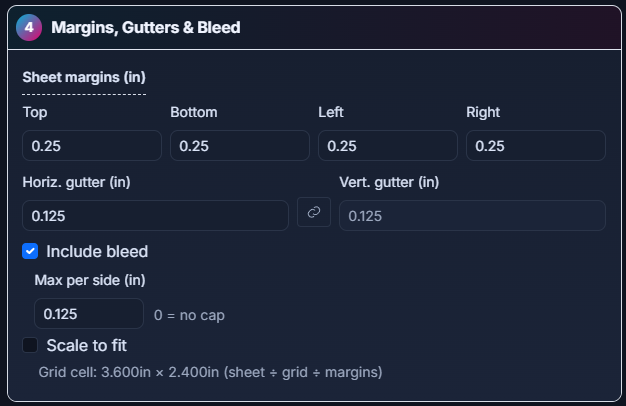
Defines printable geometry and bleed handling per sheet.
- Sheet margins: top, bottom, left, and right margin controls.
- Gutters: horizontal and vertical spacing between imposed cells.
- Gutter link button: lock or unlock horizontal and vertical gutters.
- Include bleed: uses source bleed area when available.
- Bleed cap: max-per-side setting limits applied bleed; zero means no cap.
- Synthetic bleed: if source has no effective bleed, you can add bleed per side.
- Scale to fit: choose Proportional, Fill, or Stretch fitting behavior.
- Manual cell size: optional explicit target width and height for scaling.
 1
2
3
4
5
6
7
8
1
2
3
4
5
6
7
85A. Marks: Crop Marks
Crop mark controls for trim guidance.
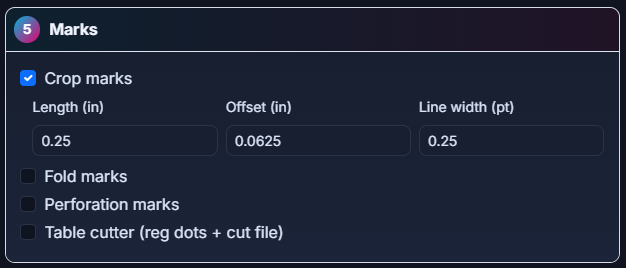
- Enable crop marks: toggles crop marks on imposed output. Default is on.
- Length: physical size of crop mark segments. Default is 0.25".
- Offset: distance from the trim edge. Default is 0.0625" (1/16").
- Line width: stroke thickness in points. Default is 0.25 pt.
- Best Fit edge-to-edge note: crop marks are disabled in edge-to-edge best fit mode.
 1
2
3
4
5
1
2
3
4
55B. Marks: Fold Marks
Fold guidance for folded products and signatures.
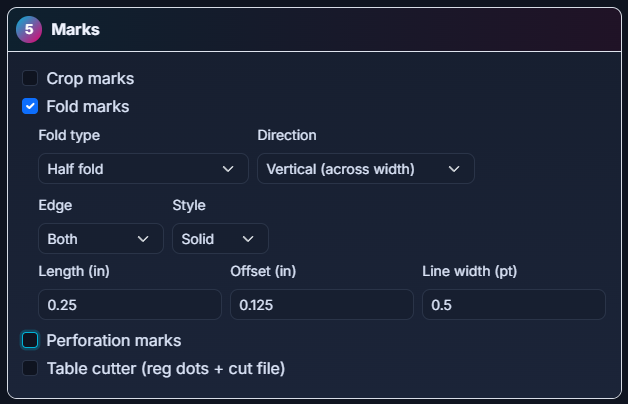
- Enable fold marks: toggles fold guide marks.
- Fold type: HalfFold, TriFold, ZFold, GateFold, Accordion4, RollFold4, Accordion6, or Custom. Custom uses the current row or column count to divide the panel evenly.
- Direction: Vertical or Horizontal fold direction.
- Edge: both or single-edge placement depending on orientation.
- Style: solid or dashed fold mark rendering.
- Length, offset, line width: geometric and stroke controls for mark appearance.
- Booklet and Booklet N-up: creep compensation appears for booklet workflows.
 1
2
3
4
5
6
7
1
2
3
4
5
6
75C. Marks: Perforation Marks
Perforation line guidance at configurable positions.
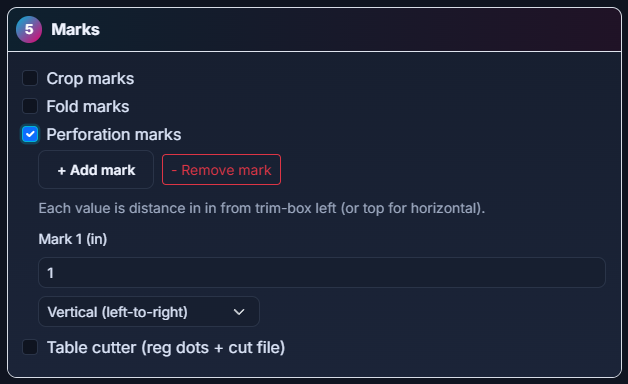
- Enable perforation marks: toggles perforation mark rendering.
- Add or remove marks: dynamically manage the count of perf positions.
- Position values: each value is a distance from the trim-box left edge in active units (or from the trim-box top edge when Orientation is Horizontal).
- Orientation: Vertical or Horizontal perforation direction.
 1
2
3
4
1
2
3
45D. Marks: Table Cutter Marks
Registration marks and table cutter integration controls.
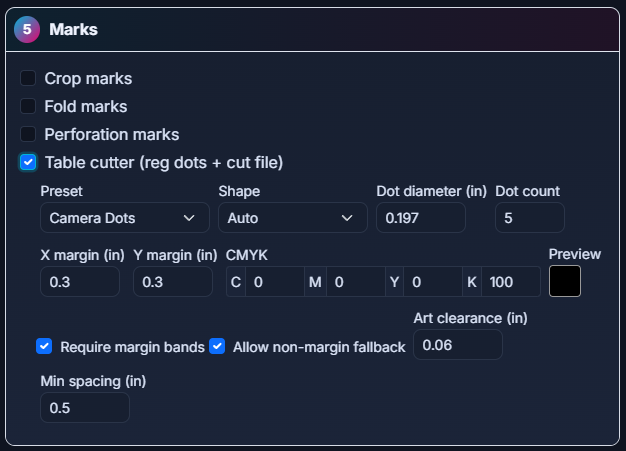
- Enable table cutter marks: adds registration marks and enables cut-file generation.
- Preset: CAMERA_DOT_5 (Camera Dots), LASER_SQUARE_RECT_2 (Laser Square + Rectangle), or DUPLO_BAR (Duplo registration mark + barcode).
- Shape override: for non-laser, non-Duplo presets, choose Auto, Dot, Crosshair, or Bullseye.
- Size and count: dot diameter and count for dot presets; mark size and line width for laser presets; line length and thickness for Duplo.
- Placement geometry: X and Y margin controls. For Duplo, edge distance clamps to 4–16 mm and the mark, barcode, and number are placed at the top-right corner.
- Ink values: CMYK percentage inputs with live swatch preview. Not used for Duplo.
- Safety constraints: margin-band requirement, non-margin fallback option, art clearance, and minimum inter-mark spacing.
- Duplo barcode: numeric value, Code39 or Code128 font, and Horizontal or Vertical (90° CCW) orientation. The value is wrapped in start/stop characters when rendered.
 1
2
3
4
5
6
7
8
1
2
3
4
5
6
7
86. Sheet Annotation
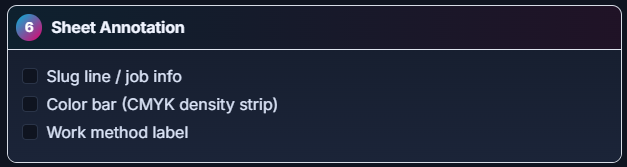
Adds non-cutting production metadata to the sheet.
- Slug line or job info: custom text plus optional filename, date, and sheet number tokens. Filename is taken from the optional job name if one is set, otherwise from the uploaded source name.
- Slug placement: Top, Bottom, TopLeft, TopRight, BottomLeft, BottomRight, LeftVertical, or RightVertical.
- Slug offsets: X and Y offsets for exact placement. Offsets push the slug away from the nominal edge position and are clamped to the printable sheet area.
- Color bar: optional CMYK density strip with height, position, and offsets. Renders process-color patches plus a 10%–100% black ramp.
- Work method label: WorkAndTurn, WorkAndTumble, or Perfector labeling, rendered with human-readable descriptions.
 1
2
3
4
5
1
2
3
4
5Preset Template panel
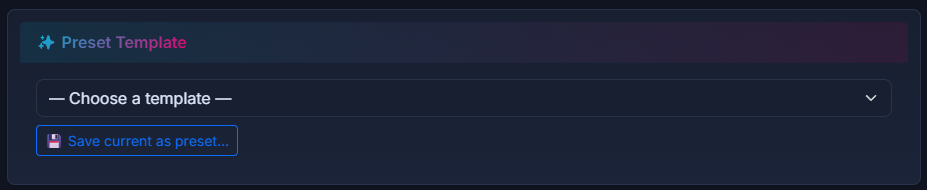
The right-column preset panel speeds setup and supports reusable shop standards.
- Template source: built-in templates and user-saved presets.
- Scope filtering: only templates compatible with the current file mode are shown.
- Create preset: save current settings as a named preset.
- Manage preset: clear or delete selected user presets.
- Plan behavior: this panel is locked on the Free plan. It is unlocked on Pro, Plus, and Studio plans.
 1
2
3
4
5
1
2
3
4
5Layout preview panel
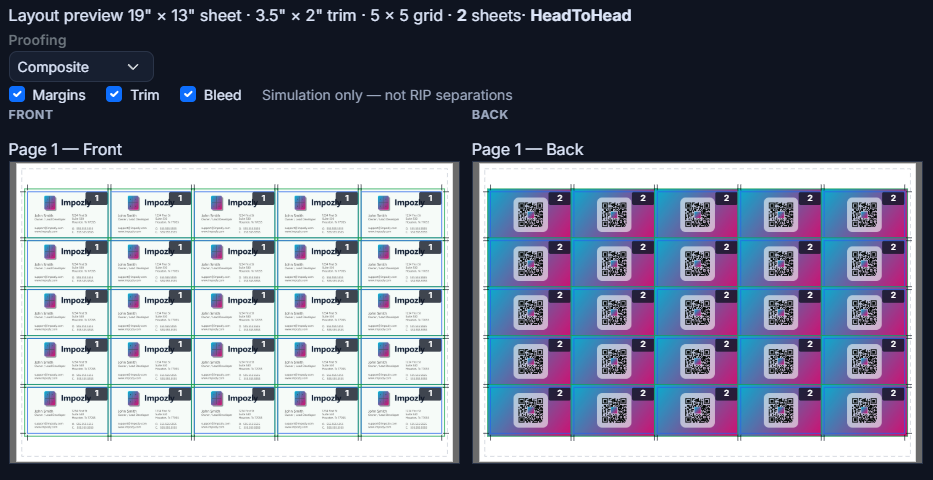
The preview renders a vector simulation of the current settings before generating final output.
- Live preview: updates as settings change, including marks and annotation options.
- Busy overlay: shows a loading state while preview assets update.
- Geometry validation: helps verify fit, gutters, bleed behavior, and mark placement before running.
 1
2
3
1
2
3Output and run panel
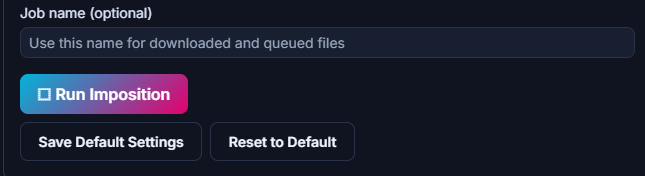
The bottom action area controls execution and default persistence.
- Job name: optional base name used for the downloaded file and for slug-line filename tokens.
- Run Imposition: builds the imposed PDF from current settings. This is the only run button currently visible in the UI.
- Status messages: success and error feedback appears directly below settings.
- Save Default Settings: stores the current configuration as personal defaults.
- Reset to Default: restores saved defaults.
- Authentication behavior: sign-in is required before file download.
- Plan watermark behavior: Free plan output is automatically watermarked with Impozly.com. The watermark toggle is not user-visible; it is forced on Free and disabled on paid plans.
 1
2
3
4
5
6
7
1
2
3
4
5
6
7